Lo-Fidelity80
Tape wobble, hiss and wear
How to install: there is no installer to run — close your DAW, copy the plug-in folder into C:\Program Files\Common Files\VST3 and open it again. Why no installer?
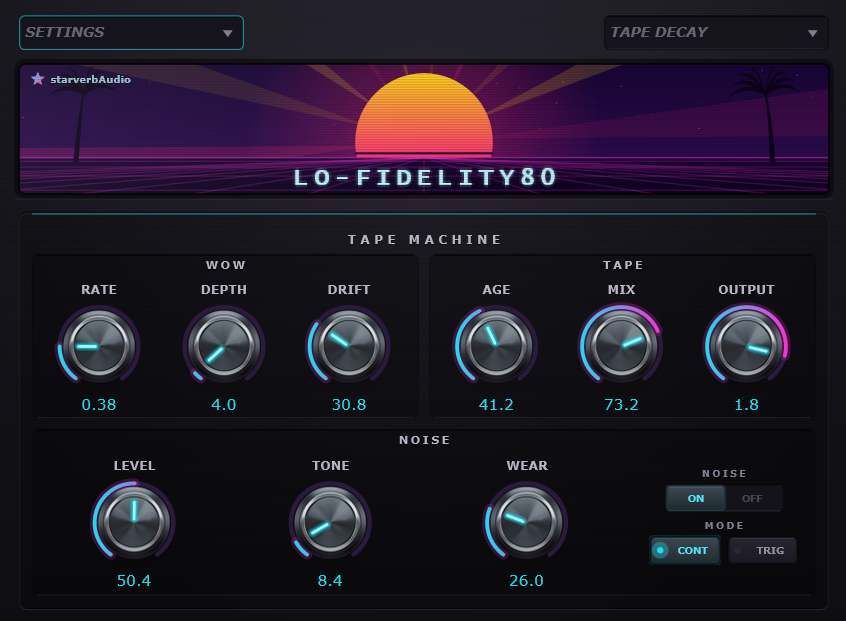
What it does
Wow
Rate, Depth and Drift bend the pitch up and down the way a worn tape transport does. Drift makes it uneven instead of perfectly regular.
Tape
Age is the main knob — turn it up and the sound gets darker and more saturated. Mix blends it back with the clean signal, Output sets the level.
Noise
Tape hiss with its own Level, Tone and Wear. It runs on its own, so you can have plenty of hiss with barely any tape colour, or the other way round.
Continuous or triggered
The hiss can run all the time, or only when something is playing so it doesn't sit under your silences.
Watch it in action
Hear it
Same take, same spot — switch between the untouched signal and Lo-Fidelity80.
Before and after
The same loop with the plug-in bypassed, then switched on
Lo-Fidelity80 makes a clean track sound like it came off an old tape.
Turn Age up and the sound gets darker and more saturated. Wow bends the pitch slightly up and down, like a tape player with a tired motor. The Noise section adds hiss on top, with its own tone and level.
Good for taking the shine off a synth, giving drums some grit, or pushing a whole mix back a few decades. Keep Mix low for a light touch, or turn everything up and let it fall apart.
Get Lo-Fidelity80
Free download. No account, no activation.
Liked it? You can buy me a coffee — entirely optional.
Before you download
There is no installer: you copy one folder.
The ZIP holds the plug-in and three text files. There is no program to install — nothing in there runs, so Windows has nothing to stop.
Your browser may call it “not commonly downloaded”. That only means it is new, not that anything was found in it — check the fingerprint below if you like.
To install it:
- Close your DAW.
- Copy the folder
Lo-Fidelity80.vst3intoC:\Program Files\Common Files\VST3 - Open it again — if it does not see the plug-in, rescan:
Ableton Live: Preferences → Plug-Ins, turn on “Use VST3 Plug-In System Folders”, then Rescan. It shows up under Plug-Ins → StarVerb Audio.
FL Studio: Options → Manage plugins → Find plugins. After the scan, load it from a mixer slot under Installed → Effects → VST3.
Windows asks for administrator permission at step 2: normal for a system folder.
Optional check — SHA-256 of the file:d26fa666f09d804518a99692f496e83f496143fb8df546785657d01080e74b53